Introduction
Using your iPad as a secondary monitor with your MacBook is incredibly powerful thanks to Apple's Sidecar feature. However, Sidecar only supports landscape mode natively. If you want to use your iPad in portrait/vertical orientation - perfect for coding, reading documents, or social media management - you'll need a third-party solution.
BetterDisplay Pro solves this limitation by creating a virtual screen that streams to your Sidecar display with rotation support. This guide covers the complete setup process.
Final Result Preview
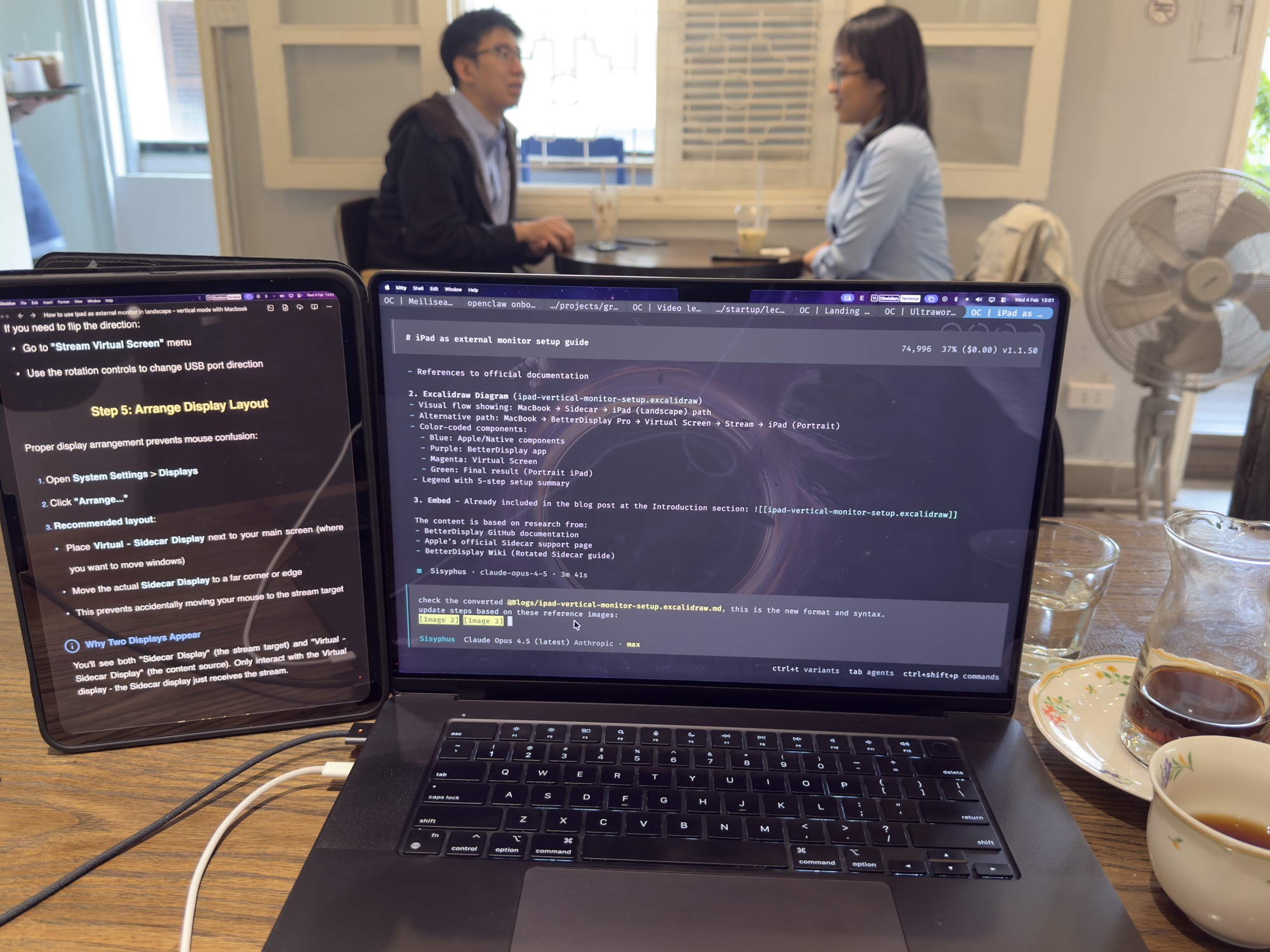
iPad in portrait mode as a secondary display next to MacBook - perfect for reading documents, coding, or chat applications.
![[ipad-vertical-monitor-setup.excalidraw.md]]
Prerequisites
Before starting, ensure you have:
| Requirement | Details |
|---|---|
| BetterDisplay Pro | A Pro license is required for virtual screen streaming ($21.99 one-time purchase) |
| Compatible iPad | iPad Pro (all models), iPad 6th gen+, iPad mini 5th gen+, iPad Air 3rd gen+ |
| Compatible Mac | MacBook Pro 2016+, MacBook 2016+, MacBook Air 2018+, iMac 2017+, Mac mini 2018+, Mac Pro 2019+, Mac Studio 2022+ |
| macOS Version | macOS Catalina or later (Ventura 13.2+ recommended for best experience) |
| iPadOS Version | iPadOS 13 or later |
[!important] Same Apple Account Required
Both your Mac and iPad must be signed in with the same Apple Account using two-factor authentication.
Step 1: Connect iPad via Sidecar
First, establish the Sidecar connection:
Enable Sidecar on your Mac:
- Move your pointer over the full-screen button of any window
- Select your iPad from the "Move to" options
- Or use Control Center > Screen Mirroring > Select your iPad
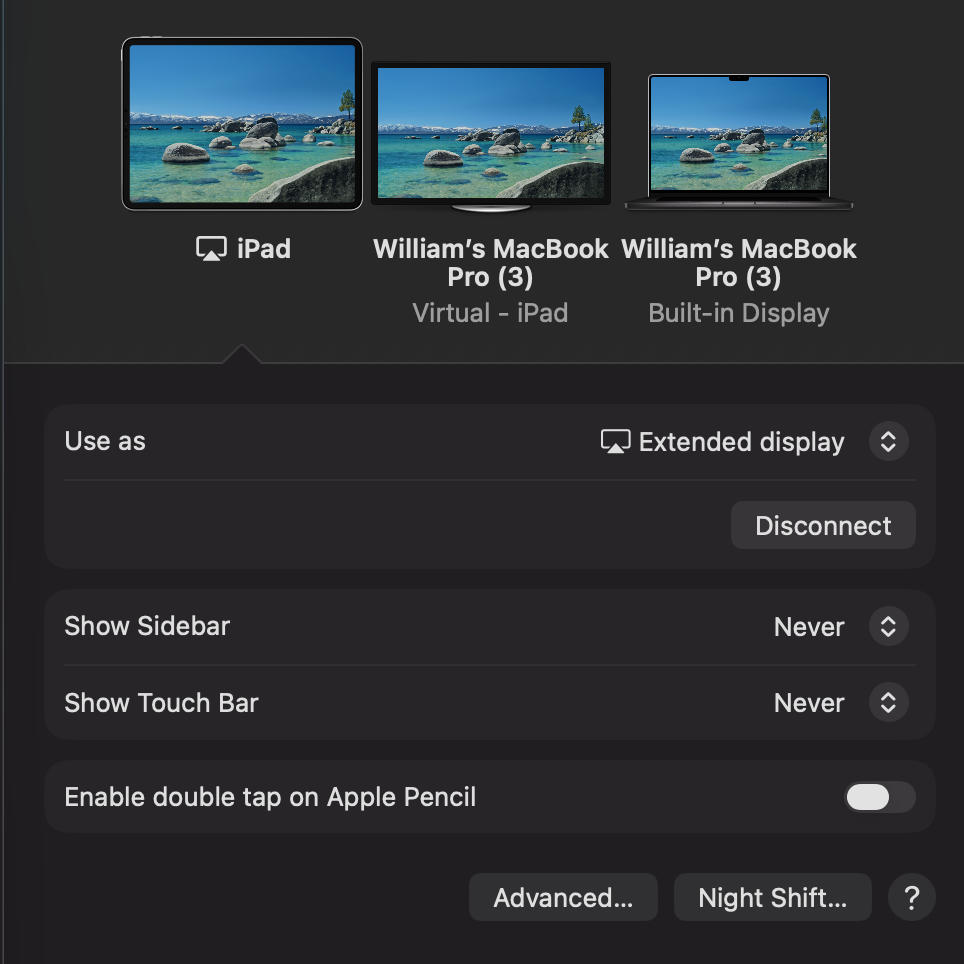
Configure Sidecar Settings in System Settings > Displays:
- Click on your iPad in the display list
- Set Use as: Extended display
- Set Show Sidebar: Never
- Set Show Touch Bar: Never
| Setting | Value |
|---|---|
| Use as | Extended display |
| Show Sidebar | Never |
| Show Touch Bar | Never |
| Enable double tap on Apple Pencil | OFF (optional) |
[!warning] Prevent Rotation Bug
Make sure your iPad is not locked in portrait orientation before connecting. The Sidecar app is designed for landscape mode and can crop the screen incorrectly if locked.
Step 2: Install and Configure BetterDisplay
Installation
Choose one of these methods:
Option A: Direct Download
1. Download from https://github.com/waydabber/BetterDisplay/releases
2. Open the .dmg file
3. Drag BetterDisplay to /Applications
4. Launch from Applications or Spotlight
Option B: Homebrew
brew install --cask betterdisplayActivate Pro License
- Click the BetterDisplay icon in the menu bar
- Go to Settings (gear icon) > Pro
- Click "Buy BetterDisplay Pro" or enter your license key
Step 3: Create Virtual Screen for Portrait Mode
This is the key step that enables portrait/vertical orientation:
- Click BetterDisplay icon in menu bar
- Navigate to Settings > Displays > Overview
- Click "Create New Virtual Screen..."
Select Virtual Screen Mode
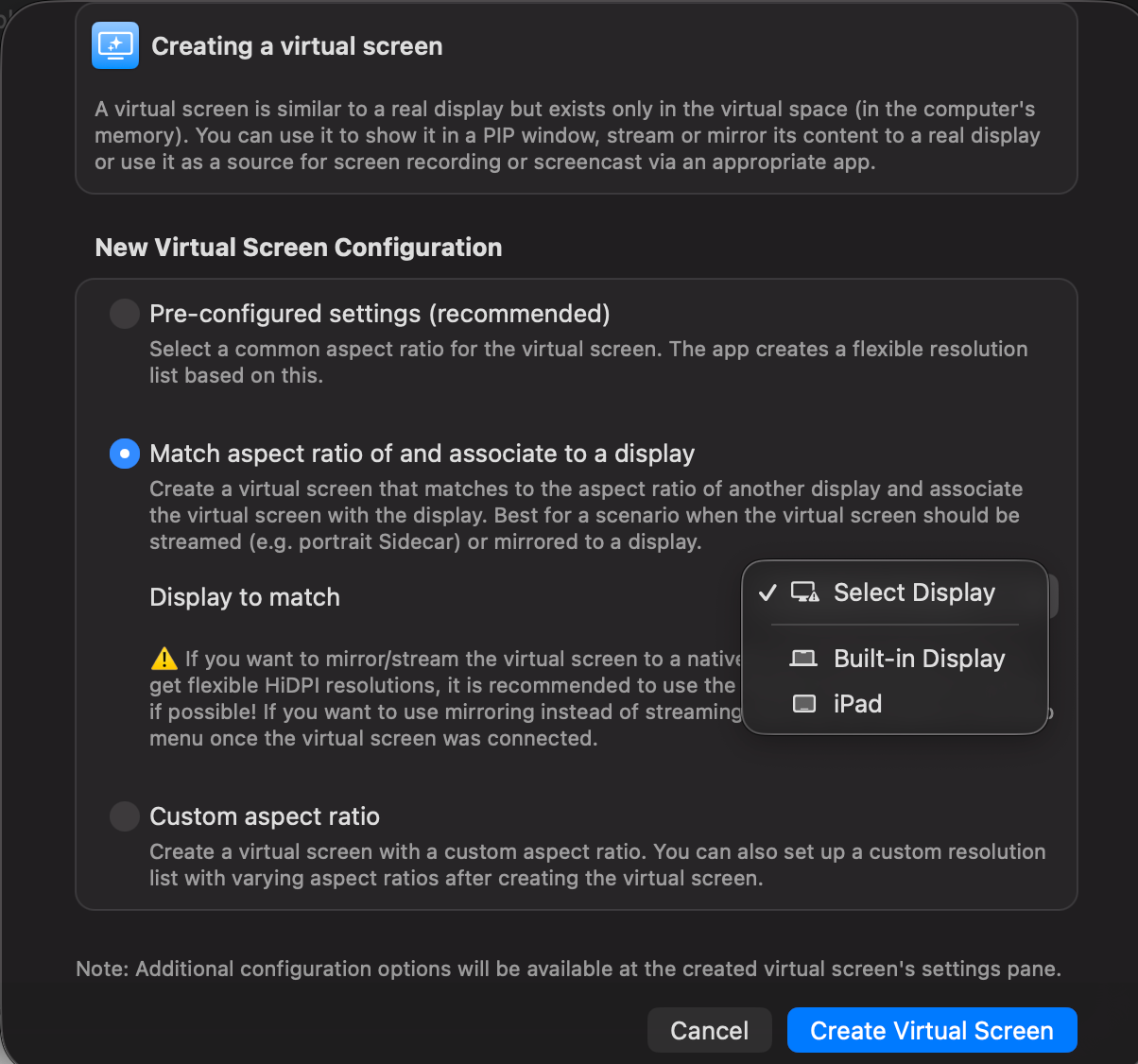
In the "Creating a virtual screen" dialog, you'll see three configuration options:
| Option | Description |
|---|---|
| Pre-configured settings (recommended) | Select a common aspect ratio |
| Match aspect ratio of and associate to a display | ✅ Select this one - Best for portrait Sidecar |
| Custom aspect ratio | Create custom resolution |
From the "Display to match" dropdown, select "iPad".
Configure Portrait Settings
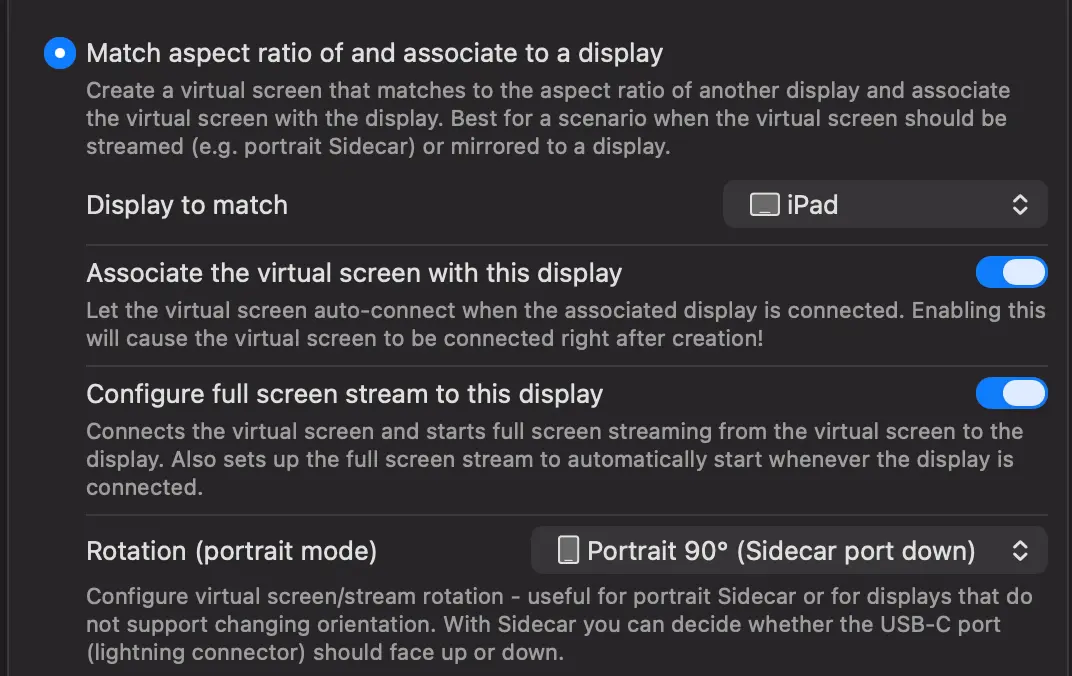
After selecting iPad, configure these settings:
| Setting | Value | Description | ||
|---|---|---|---|---|
| Display to match | iPad | Your connected Sidecar iPad | ||
| Associate the virtual screen with this display | ✅ ON | Auto-connect when iPad connects | ||
| Configure full screen stream to this display | ✅ ON | Stream virtual screen content to iPad | ||
| Rotation (portrait mode) | Portrait 90° (Sidecar port down) | Rotates display for portrait orientation |
[!tip] Rotation Options
- Portrait 90° (Sidecar port down): USB-C/Lightning port faces down - most common setup
- Portrait 90° (Sidecar port up): USB-C/Lightning port faces up - if charging from above
Choose based on your desk setup and where the charging cable will go.
- Click the blue "Create Virtual Screen" button
A new display called "Virtual - iPad" will appear in your display arrangement, streaming rotated content to your iPad in portrait mode.
Step 4: Adjust Resolution and Settings
After creating the virtual screen, very well
Change Resolution
- In BetterDisplay menu, find "Virtual - iPad"
- Use the resolution slider to adjust
- Higher resolution = more screen real estate but smaller text
[!caution] Use the Correct Slider
Make sure you're adjusting the Virtual - iPad resolution, not the regular "iPad" display. The virtual screen is what you interact with.
Toggle Orientation
To switch between portrait and landscape:
- Click "Rotated Orientation" under the Virtual - iPad menu
Adjust Stream Rotation
If you need to flip the direction:
- Go to "Stream Virtual Screen" menu
- Use the rotation controls to change USB port direction
Step 5: Arrange Display Layout
Proper display arrangement prevents mouse confusion:
- Open System Settings > Displays
- Click "Arrange..."
- Recommended layout:
- Place Virtual - iPad next to your main screen (where you want to move windows)
- Move the actual iPad display to a far corner or edge
- This prevents accidentally moving your mouse to the stream target
[!info] Why Two Displays Appear
You'll see both "iPad" (the stream target) and "Virtual - iPad" (the content source). Only interact with the Virtual display - the iPad display just receives the stream.
Troubleshooting
Common Issues and Solutions
| Issue | Solution |
|---|---|
| Mouse not rotating correctly | You're on the Sidecar display, not the Virtual display. Move mouse to the Virtual display. |
| Laggy/choppy streaming | Use a wired USB connection instead of wireless. Wi-Fi streaming requires excellent signal. |
| Portrait mode not working | Ensure Sidebar and Touch Bar are set to "Hide" in Sidecar settings. |
| Resolution looks wrong | Adjust the Virtual display's resolution slider, not Sidecar's. |
| Sidecar disconnects randomly | Keep devices within 10m, ensure strong Wi-Fi, or use USB cable. |